Play smarter.Here’s how.

Everything you need to know about setting up wheels, tracking tickets, and checking results — for lotto-style games and daily digit games.

v1.9.28

7
14
23
36
42
9

What Is Lottery Wheeling?

Instead of playing your lucky numbers on a single ticket, wheeling takes a larger pool of those numbers and generates every optimized combination across multiple tickets — duplicate-free and mathematically systematic. More coverage means a better chance that your numbers appear together on at least one ticket when they’re drawn.

A Simple Example

1
You’re playing Powerball. You have 9 lucky numbers you always use.
2
A single ticket only uses 5 of those numbers — most of your picks never appear together.
3
Wheeling takes all 9 numbers and distributes them systematically across a set of tickets — so every combination gets covered.
4
If several of your picks are drawn, the wheel guarantees at least one ticket contains them together.
Wheeling doesn’t change lottery odds — nothing can. What it changes is how efficiently your numbers are used. That’s the point.
Playing Pick 3, Pick 4, or Pick 5 daily numbers? Wheeling works a little differently for those — see Wheeling & permutations with digits for the digit-game version.

Creating Your Account

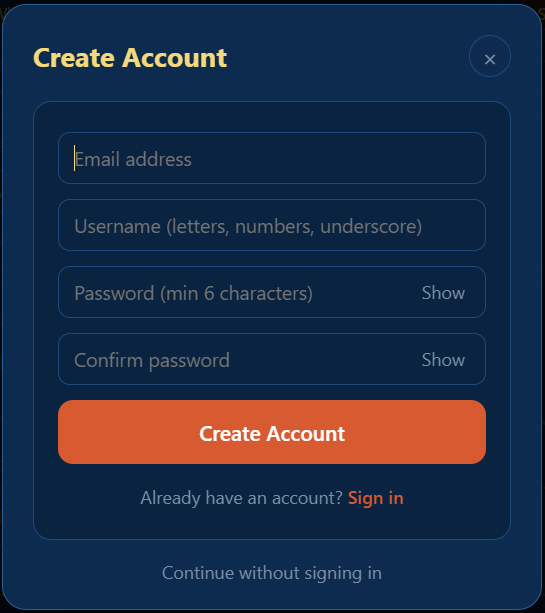
Create Account screen with email, username showing green checkmark, and password fields
Create Account screen

You don’t need an account to start. The app opens straight to the Setup tab for everyone — pick a lottery, build a wheel, save Picks and history, all without signing in. Creating an account is optional, and free.

Do I Need to Sign Up?

No. As a guest, the whole app works — you just can’t keep anything once you close it. Everything you build (Picks, history, even a custom lottery) lives in the current session and clears when you leave.

Signing up for a free account changes one thing: a custom lottery you define on the Setup tab is remembered the next time you sign in. Picks and history are still session-only on Free — keeping those across sessions is what Pro and Elite add. So an account is worth it if you’ve built a custom game you don’t want to re-enter every visit.

Whenever a sign-up prompt appears, it’s a card you can dismiss — tap Continue without signing in to go right back to what you were doing.

Creating an Account

Sign up with an email address, a username, and a password. No credit card required — the Free tier stays free.

3–20 characters — letters, numbers, and underscores only
Lowercase only — the app converts as you type
A green ✓ appears once your handle is available
You can change it later from Settings

Already have an account? Tap Sign in at the bottom of the screen. If you forget your password, use Forgot password? on the sign-in screen — a reset link arrives in your email within minutes.

The Help Button

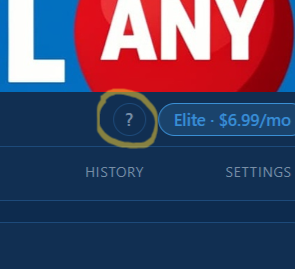
Top bar of the app showing the circular question-mark help button next to the Pro tier badge
The help button in the top bar

A small circular ? button sits in the top bar of the app, toward the top-right next to your tier badge (or the Sign In button, if you’re browsing as a guest). Tap it any time to open this guide — it’s context-aware, so it lands you on the section that matches whichever tab you’re currently on, and which game shape (lotto-style or digit) you’re working with. A few other ? buttons appear inline in places where extra explanation tends to help (next to + Custom when setting up a lottery, and on the Win Checker card); those open the relevant section directly.

Free, Pro & Elite

Every plan includes the core tools for both lotto-style games and digit games. Pro and Elite unlock more numbers, smarter coverage methods, and permanent saving.

Free
  • Powerball & Mega Millions presets
  • 1 custom lottery slot (lotto or digit)
  • Wheel up to 10 numbers
  • Full Wheel method
  • Digit-game calculator (Pick 3/4/5 with win checking)
  • Picks & history work in-session (cleared on close)
  • Signed in: your 1 custom lottery is remembered
  • Broad Coverage method
  • Saved Picks & history kept across sessions
Most Popular
Pro
  • Everything in Free
  • Wheel up to 20 numbers
  • Broad Coverage method
  • 2 custom lottery slots
  • Save named Picks (lotto and digit)
  • Ticket history & win tracking
  • Win checker with result saving
  • Cancel anytime
Elite
Elite
  • Everything in Pro
  • Wheel unlimited numbers
  • Abbreviated Wheels (guaranteed coverage)
  • 3 custom lottery slots
Upgrading from Free? Any Picks or history entries you generated during your session are automatically carried over once your payment goes through — nothing is lost.

Free vs Pro — What Sticks Around

On the Free tier — whether you’re signed in or browsing as a guest — the Picks tab and History tab show the full layout, controls, and stats, and everything works in real time within your session. What differs is what survives closing the app:

Guest — nothing is kept. Picks, history, and any custom lottery clear when you leave.

Signed-in Free — your one custom lottery definition is remembered. Picks and history are still session-only.

Pro / Elite — Picks and history persist across sessions, so you can reuse setups and track wins over months and years.

Section 04

Lotto-style Games

Powerball, Mega Millions, and any lottery where you pick a fixed set of numbers from a larger pool — with or without a bonus ball. This section covers everything from your first wheel to recalling a saved entry as a template for next week’s drawing.

Playing Pick 3, Pick 4, or Pick 5 daily numbers instead? Skip ahead to Section 05 — Digit Games.

4.1

Overview

Lotto-style games are the ones where you choose a fixed number of picks from a pool — five, six, sometimes more — and a separate bonus ball if the game has one. Powerball and Mega Millions are built in; you can add your own state or local game from the Setup tab as a custom lottery.

What the App Gives You

A single ticket uses only as many numbers as the game asks for — five for Powerball, six for some state games. Wheeling lets you nominate a larger pool of favorite numbers and spread them across multiple tickets so every combination of your picks gets covered systematically. Section 01 covers the underlying idea; this section covers how to do it in the app.

The flow is: configure a wheel on Setup, generate tickets, save the configuration for re-use, save the actual tickets to history after you play them, then check wins after the drawing.

Three Selection Methods

A pool of favorite numbers can produce more tickets than you want to actually play. The app offers three ways to choose which tickets to play: random for pretty good coverage, evenly distributed for better coverage, or an abbreviated wheel for the best economical option. See 4.2 The Setup tab for the details.

Bonus Ball Games

Some lotto games include a separate bonus pool — Powerball’s red ball, Mega Millions’ gold ball, others by other names. For these games the app shows a second smaller picker for your bonus ball selections, and tickets pair each main combination with each bonus pick.

Where to Go From Here

4.2 The Setup tab — building a wheel, step by step.

4.3 Custom Lotteries — adding a state or local game.

4.4 The Tickets tab — reviewing generated tickets, saving to history.

4.5 The Win checker — entering winning numbers and seeing what hit.

4.6 Typical play sequence — a worked example tying it all together.

4.2

The Setup Tab

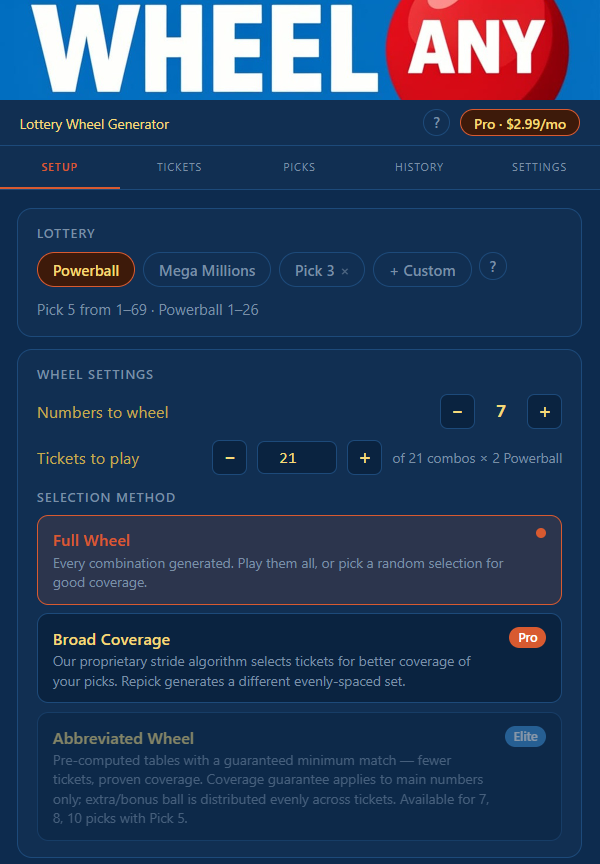
Setup tab showing lottery selector with Powerball active, wheel settings, and three selection method cards
Setup tab — lottery, settings & methods

Setup is your starting point. Choose a lottery, configure your wheel, pick your numbers, and generate.

Step 1 — Choose a Lottery

Tap any lottery pill in the selector to activate it. Powerball and Mega Millions are built in. You can also select a custom lottery you have defined (see 4.3 Custom Lotteries below). The active game’s number range and pick count appear just below the selector row.

Step 2 — Wheel Settings

Numbers to wheel controls how many numbers go into your pool. Tap + or − to adjust. Free: up to 10. Pro: up to 20. Elite: unlimited.

Tickets to play shows the count of combinations to actually play, alongside the total possible. Use the + or − buttons to adjust, or type a number directly. For games with a bonus ball (Powerball, Mega Millions), you’ll also see a bonus ball picks count.

Step 3 — Selection Method

A pool of favorite numbers can produce more tickets than you want to play. Three methods control how the app chooses which rows make it onto your tickets — good, better, and best coverage depending on your tier.

Full Wheel
Every combination of your picks — complete, guaranteed coverage. You can’t beat playing every row. Sometimes that’s a lot of tickets, so you can reduce Tickets to play and the app picks a random subset of the full wheel for good coverage. Tap ↺ Repick on the Tickets tab for a different random subset of the same full wheel.
Broad Coverage Pro
A stride algorithm — not random — selects a subset for better coverage. The selection aims for as close to uniform coverage of all your picks as possible. ↺ Repick generates a different evenly-spaced set.
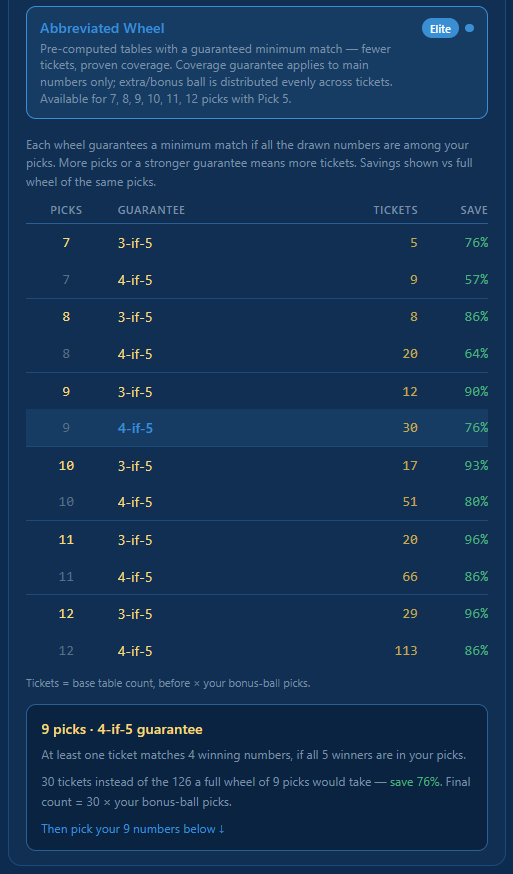
Abbreviated Wheel Elite
The best way to economize. Pre-computed minimal tables with a mathematical guarantee — if enough of your numbers are drawn, at least one ticket matches. Fewer tickets, proven coverage.
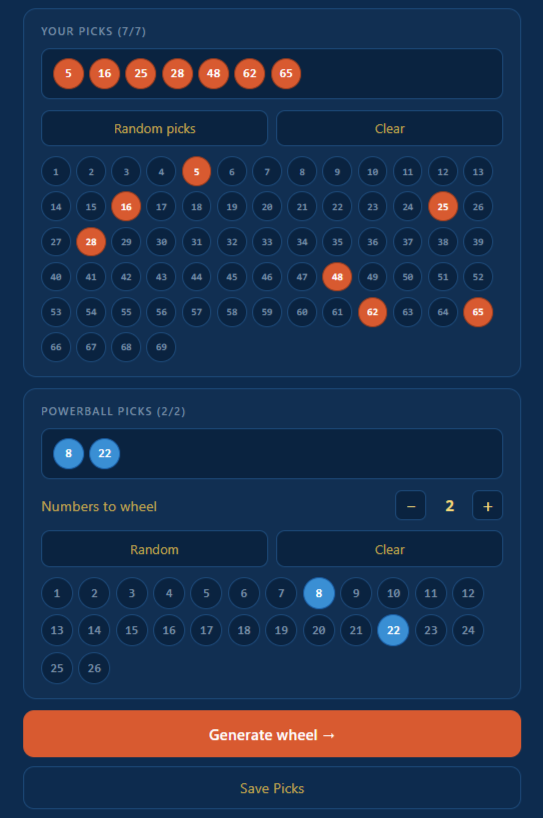
Number selection grid with picks highlighted in orange and Powerball bonus picks in blue below
Number grid — main picks and bonus picks

Step 4 — Pick Your Numbers

Tap numbers on the grid to select them. Your selections appear at the top of the card in the order chosen. Two quick buttons: Random picks fills your slot with a fresh random selection, and Clear removes all current selections. Tap a selected number to deselect it.

For bonus ball games, a second card appears below the main grid for your bonus ball picks, with its own Random and Clear buttons.

Step 5 — Generate & Save

Once your picks are complete, tap Generate wheel →. Your tickets appear in the Tickets tab.

Before or after generating, tap Save Picks to store the current configuration — lottery, picks, ticket count, and method — in the Picks tab. Free users can save Picks during a session, but they disappear when the app closes. Upgrade to Pro to keep them permanently.

4.3

Custom Lotteries

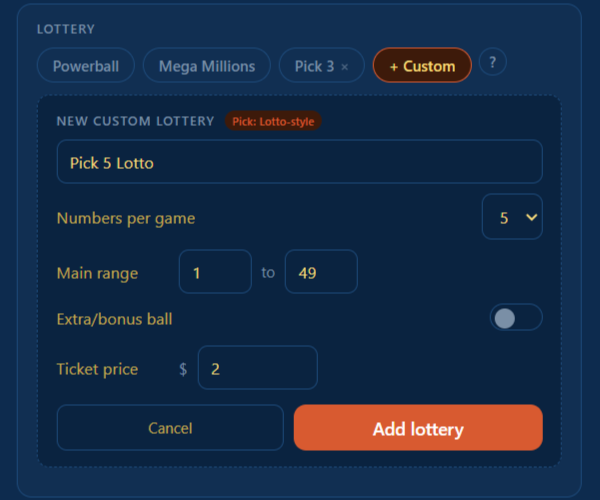
Custom lottery form showing name field, numbers per game dropdown, main range inputs, and extra ball toggle
Custom lottery form — lotto-style

Don’t see your game in the built-in list? Every plan includes at least one custom lottery slot — Free gets 1, Pro gets 2, Elite gets 3. Slots can hold either a lotto-style game or a digit game; you choose which when you create one.

Creating a Custom Lotto-style Lottery

In the Setup tab, tap + Custom in the lottery selector. The form opens with a first choice: Lotto-style or Digits. Pick Lotto-style for any game where you select N numbers from a pool (with or without a bonus ball). Then fill in:

Name — what to call your game
Numbers per game — how many main numbers are drawn (3–7)
Main range — lowest to highest main numbers (e.g. 1 to 49)
Extra/bonus ball — toggle on if your game has one, then name it (like Powerball, Mega Ball) and set its range
Ticket price — optional, the cost per ticket (e.g. $2). If set, your estimated cost and History spending totals will be tracked for this game.

Tap Add lottery to save. The custom lottery appears as a pill in the selector. Tap it once to select it for use; tap it again to reopen the form and edit its settings. To delete, tap the × on the pill. A small ? button next to + Custom opens this section of the guide if you want to revisit the rules.

Need more custom lotteries? Upgrade to unlock additional slots — Pro gets 2, Elite gets 3.

4.4

The Tickets Tab

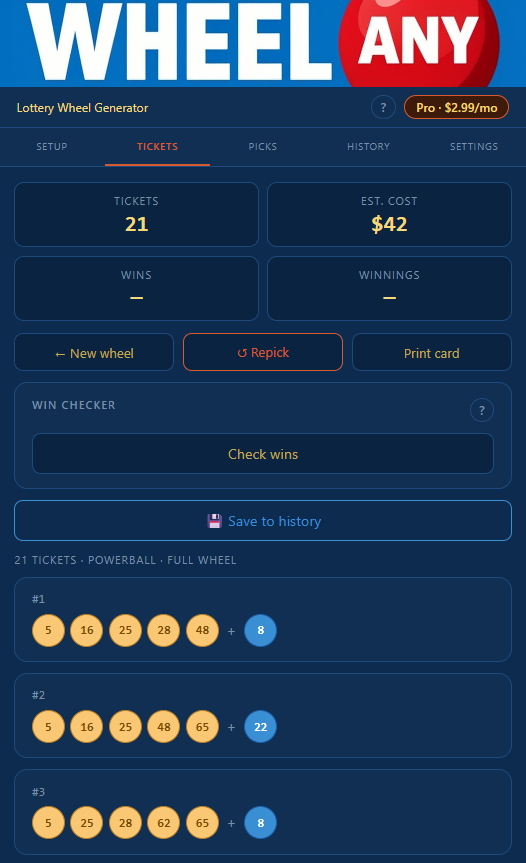
Tickets tab showing stats grid, action buttons, collapsed win checker card, save to history button, and first few tickets
Tickets tab — lotto-style

After hitting Generate, the Tickets tab shows your full set of combinations along with stats, action buttons, and tools for saving and checking results.

Stats Grid

Four stats at the top update as you interact: Tickets (count), Est. Cost (estimated ticket cost — shown when the lottery has a known price, “—” when it doesn’t), Wins (after a win check), and Winnings (total confirmed prize amount).

Action Buttons

← New wheel — return to Setup to start fresh
↺ Repick — generate a fresh subset from the same picks without returning to Setup. Available only when you’re playing fewer than every possible ticket (for Powerball-style games, fewer than main combinations × extra-ball picks; for games without an extra ball, fewer than the main combinations alone). It also doesn’t appear while you’re viewing a history entry — hit ▶ Play again first to make those tickets editable again.
Print card — opens a printable reference card. Disabled for sets over 500 tickets.
▶ Play again — appears when viewing a history entry. Reuses the same tickets for a new drawing.

Saving to History Pro

Tap 💾 Save to history to log these tickets. A small dialog opens with a date picker. If you’re viewing an entry you already saved, the status line above the button reads Saved to history — {date}, and the dialog’s confirm button automatically adapts: changing the date flips it from Update history entry (overwrite in place) to Add history entry (create a new entry, keep the old one). That’s how you reuse a saved set of tickets as a template for a new drawing.

If the lottery has a known ticket price, the estimated cost is added to your total Spent in the History tab. Heading back to Setup and changing anything — picks, ticket count, method, anything — clears the Tickets tab and the saved-status line along with it. Hit Generate again to produce a fresh set tied to the new configuration.

A separate Clear win results button appears on the Win Checker card whenever there’s win-checker content to clear — useful when reusing a saved entry as a template for a new drawing. 4.5 The Win checker covers the details.

Printable Reference Card

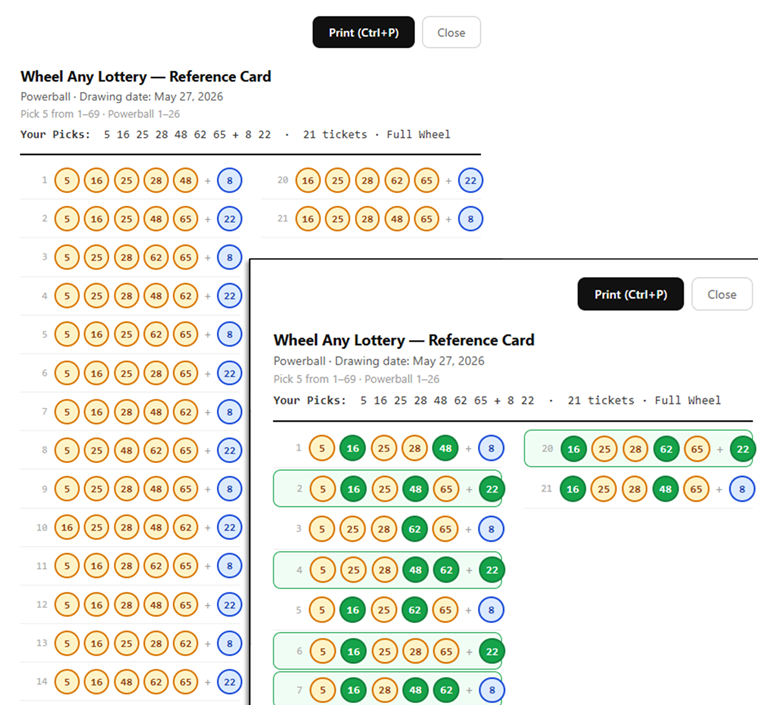
Printable reference card overlay showing the page 1 header, two columns of ticket rows, and a dashed PAGE BREAK indicator between pages
Printable reference card

Tap Print card to open the printable view. The full set lays out in two columns with page numbers in the corner; on screen, a dashed PAGE BREAK indicator shows where each printed page ends. Use the Print button at the top (or your browser’s standard print command) to send it to a printer or save as PDF; Close returns you to the Tickets tab.

If you’ve already run a win check, the printout reflects it — matched numbers print green, winning tickets sit inside a green border. Print before checking and you get the plain version. The Print card button is disabled for sets over 500 tickets; the app shows an estimated page count for sets of 200 or more.

4.5

The Win Checker

After the drawing, load a history entry and enter the winning numbers. The app compares every ticket automatically and highlights matched numbers. A small ? button next to the Win Checker controls jumps straight to this section of the guide if you need a refresher.

How to Run a Win Check

1
In the History tab, tap the entry — the full set of tickets, picks, and configuration loads in the Tickets tab
2
Tap Check my tickets on the Win Checker card to expand it
3
Type the winning numbers into the field, space or comma separated. The app shows a ball preview as you type.
4
For bonus ball games, enter the bonus number in the field below
5
Tap Check my tickets at the bottom to run the check
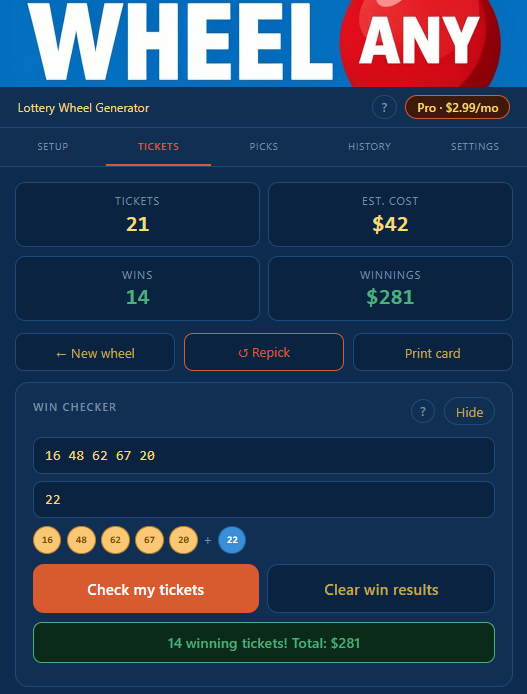
Win checker card with numbers entered, result banner showing 6 winning tickets totalling 60 dollars, and prize entry field
Win checker — numbers and results
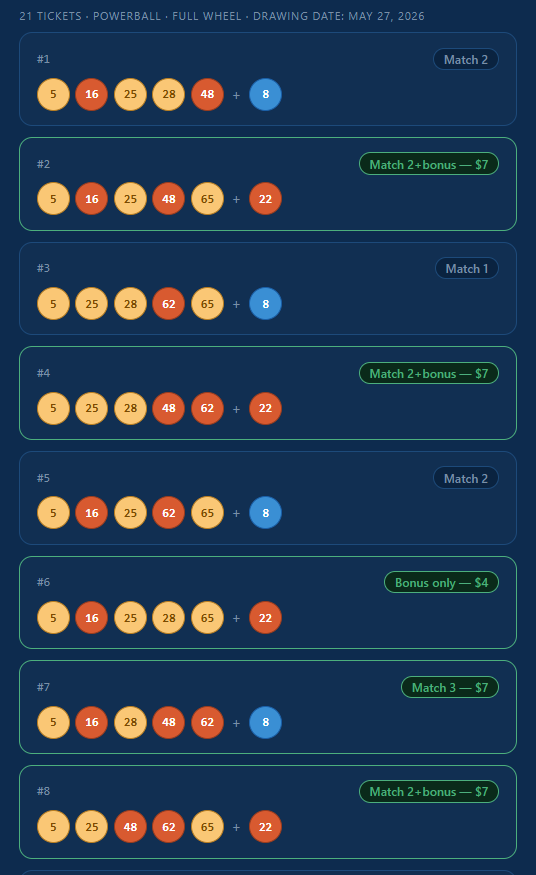
Ticket list with matched numbers highlighted in orange and Match 3 badge on winning ticket
Matched numbers highlighted per ticket

Reading Your Results

A result banner shows total winning tickets and prize amount. Matched numbers are highlighted on each ticket, with a match label on the right. For Powerball and Mega Millions, prize tiers are applied automatically. For other games, fields appear where you enter the prize per match level — the app calculates your total.

Saving Win Results

Tap 💾 Save to history below the Win Checker. The dialog opens with the drawing date already filled in (from when you saved this entry). Confirm or change it, then save — the confirm button reads Update history entry if you’re keeping the same date, or Add history entry if you changed it. The History tab updates with the winning numbers and your result summary, and your confirmed winnings are added to the Won total — bringing your Net into focus.

Clear Win Results

Once you’ve typed anything into the winning-numbers field — or run a check that produced results — a Clear win results button appears next to Check my tickets. Tapping it wipes the win input, the bonus-ball field, and any computed results, but leaves the rest of the entry intact — your picks, tickets, and the entry’s history binding all stay put.

This is most useful when you’re reusing a saved entry as a template for the next drawing. Recall the entry, clear the previous drawing’s win results, change the date in the Save dialog, tap Add history entry, and you have a fresh entry for the new drawing without losing the original.

4.6

Typical Play Sequence

A walkthrough of one game’s lifecycle, from setup to win check to reuse for the next drawing. This is the loop everything else in this section supports.

Tuesday — Setting Up for Wednesday’s Drawing

You’re playing Powerball this week. You open the app, land on the Setup tab, and the active lottery is already Powerball from last time. You bump Numbers to wheel up to 9, leave the method on Full Wheel, and tap nine main numbers on the grid plus two Powerball picks below. The ticket counter shows 42 tickets (21 main combinations × 2 Powerball picks).

You like this configuration. Before generating, you tap Save Picks, name it “My 9-number wheel,” and confirm. The Picks tab now has a card for it. A small Loaded: My 9-number wheel tag appears above the Setup fields, marking that you’re working with a saved configuration.

Tap Generate wheel →. The app jumps to the Tickets tab.

Still Tuesday — Buying and Logging

You scroll the Tickets tab to review your 42 combinations. You head to the corner store and buy your tickets at the counter — the printout from Print card makes this easy if you don’t want to read from your phone.

Back home, you tap 💾 Save to history. The dialog opens. You set the drawing date to tomorrow (Wednesday) and tap Add history entry. A status line appears above the Save button: Saved to history — Mar 5. The estimated cost is added to your Spent total in History.

Wednesday Evening — Checking the Results

The drawing happens. You open the app, tap the History tab, and tap your entry — the full 42 tickets load in the Tickets tab. You tap Check my tickets on the Win Checker card, type the winning numbers, type the Powerball, then tap Check my tickets again at the bottom.

Three tickets light up green. Match-3 on two of them, Powerball-only on the third. The banner at the top says 3 winning tickets, $12. The matched numbers are highlighted on each ticket.

You tap 💾 Save to history again. The dialog opens with Wednesday already in the date field; the confirm button reads Update history entry. You tap it. The History tab now shows your entry as confirmed with $12 won and the running Net total updated.

Saturday — Reusing the Same Wheel for the Next Drawing

You want to play the same 9-number wheel again for Saturday’s drawing. Two ways to do this:

Option 1 — From the Picks tab. Open the Picks tab, find “My 9-number wheel,” tap Load these Picks. Setup opens with everything restored. Tap Generate wheel → to produce a fresh set (or just review the same tickets if you’re using Full Wheel and haven’t changed anything), then 💾 Save to history with Saturday’s date. A brand-new history entry.

Option 2 — From the History tab (recall as template). Open the History tab, tap your Wednesday entry. The Tickets tab loads it with status Saved to history — Mar 5. The Win Checker still shows Wednesday’s drawn numbers from last time. Tap Clear win results to wipe those, then tap 💾 Save to history. The dialog opens with Wednesday’s date prefilled. Change it to Saturday — the confirm button flips to Add history entry. Tap it. New entry, same tickets, original Wednesday entry untouched.

Both work; option 2 is shorter when you’re reusing a recent set of tickets exactly.

What Keeps the Entry Linked, and What Breaks the Link

While you’re viewing a history entry on the Tickets tab, the status line at the top of the Save card stays as long as the entry is “the same entry” in the app’s eyes. Some things preserve that link; others break it.

Link survives: typing winning numbers, running a win check, clearing win results, entering prize amounts. These are normal post-drawing actions on the same entry.

Link breaks: going back to Setup and changing anything material — picks, ticket count, method, the lottery itself. The app treats those as a new configuration. The Tickets tab clears, and any save you make afterward creates a new history entry rather than updating the old one.

The Add history entry vs Update history entry CTA in the Save dialog is the visible signal: if you see “Add,” the next save creates a new entry; if you see “Update,” the next save overwrites the linked one.

Section 05

Digit Games

Pick 3, Pick 4, Pick 5 — the daily-number style games where you pick a short string of digits and the order can matter. Different shape than lotto-style: a wager-type menu (Straight, Box, Combo, and pair/prefix wagers) lets you bet the same digits multiple ways on one ticket, and many states draw two or three times a day. This section covers everything from your first digit ticket through reusing a saved game for tonight’s drawing.

Playing Powerball, Mega Millions, or another lotto-style game? Head back to Section 04 — Lotto-style Games.

5.1

Overview

Digit games go by many names across the country — Pick 3, Cash 3, Daily 3, Pick 4, Cash 5, others. They share a shape: you choose a string of K digits (each 0–9, repeats allowed), the state draws K digits, and depending on what kind of bet you made, your ticket might match the digits exactly in order, in any order, or just at the start or end.

How They Differ From Lotto-style

Three things to know upfront:

Order can matter. A lotto-style ticket is a set — the order you picked the numbers doesn’t matter. A digit ticket is a sequence — the digits sit in three (or four, or five) positions, and some bet types only pay when each digit lands in its position.

One ticket, several bets. Lotto-style: one ticket, one bet. Digit games: one combination of digits, but you can place several different kinds of bets on it at the same time — a Straight bet (positional), a Box bet (any order), Front Pair, and so on. The wager-type menu is the heart of digit-game play.

Multiple drawings per day. Many states draw twice or three times daily — midday and evening, sometimes a morning draw too. The app tracks which drawing each ticket was for.

The Wager Types

Brief tour of what each bet does. The app offers all the wager types below; when you set up your lottery you choose which ones to turn on — check the wagers your state offers, or just the handful you actually use. Anything you don’t check stays out of the way on the Tickets screen.

Straight
Your digits must match the drawn digits in exact order. The hardest match, the biggest payout. Bet 1·2·3 Straight, the draw must be 1·2·3.
Box
Your digits must match the drawn digits in any order. Easier match, smaller payout. Bet 1·2·3 Box, draws of 1·2·3, 2·1·3, 3·2·1, etc. all pay.
Combo
Shorthand for “cover all the Straight orderings of these digits.” Pays Straight prizes — but you pay for every ordering up front. Pick 3 and Pick 4 games only.
Front Pair / Back Pair
Match the first two or last two drawn digits in order. The rest of the draw is ignored.
Front 3 / Back 3 / Front 4 / Back 4
Same idea as pairs but longer prefixes or suffixes. Available on Pick 4 (Front 3, Back 3) and Pick 5 (Front 3, Back 3, Front 4, Back 4).

If your state calls something by a different name, it’s probably one of these under another label. Cross-check the wager kinds with what your state offers before turning them on.

Fire/Wild Ball

An optional bonus mechanic. Pay extra at the time of purchase, and when the drawing happens an additional “wild” digit is announced — substituting it into your ticket can turn a near-miss into a winner. 5.7 Fire/Wild Ball covers the details.

Where to Go From Here

5.2 The Setup tab — entering digit rows, previewing combos, sending tickets.

5.3 Custom Lotteries — adding your state’s digit game.

5.4 Wheeling & permutations — how the row picker turns digits into combinations.

5.5 The Tickets tab — setting per-ticket wagers and amounts.

5.6 The Win checker — entering drawn digits, prize self-population.

5.7 Fire/Wild Ball — the bonus mechanic explained.

5.8 Typical play sequence — a worked example tying it all together.

5.2

The Setup Tab

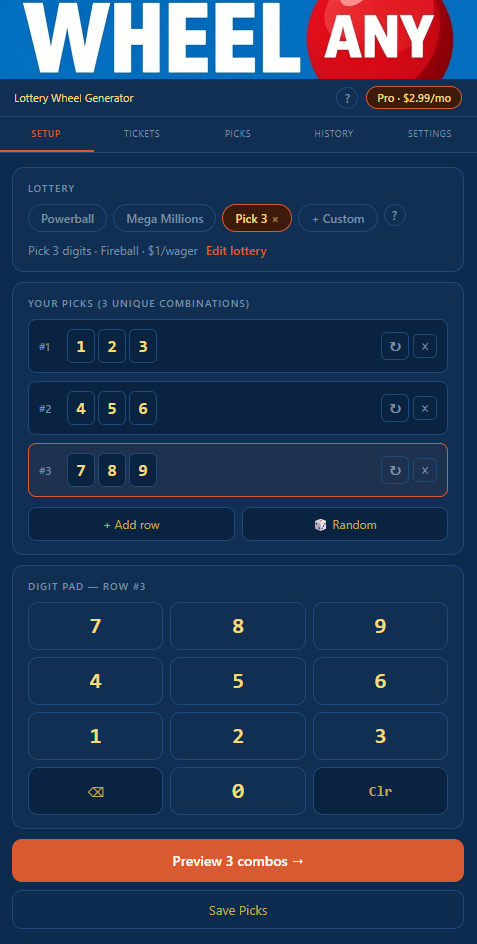
Digit Setup screen with three input rows showing digit tiles, an active row highlighted, and a Preview button at the bottom
Digit Setup — rows, digit pad, preview

Setup for a digit game is built around rows of digits. Tap in a few of your favorite digits, watch the live count tick up as each extra digit multiplies the unique combinations — a single row of five or six digits can produce a small wheel of tickets, and toggling permutations on lets you cover every ordering as well. Preview, prune the combos you don’t want, and send the rest to Tickets for wagering.

Step 1 — Choose a Digit Lottery

Tap a custom digit lottery you’ve already defined in the lottery selector at the top. Don’t have one yet? See 5.3 Custom Lotteries below — you’ll add your state’s game in a minute or two. Once a digit lottery is active, the rows-and-pad layout takes over the Setup card.

Step 2 — Enter Digit Rows

Each row is a slot for digits. Tap a digit on the keypad and it appends to the active row (highlighted). Tap to delete the last digit. Tap Clr to empty the active row. Tap another row to make it active.

How many digits you put in a row decides what happens:

Exactly K digits (3 for Pick 3, 4 for Pick 4, 5 for Pick 5) means that row is a single fixed combination.

More than K digits means the app wheels the row, producing every K-length combination of those digits. 5.4 Wheeling & permutations explains exactly how that works, with visual examples.

Fewer than K digits means the row isn’t ready yet — the row stays in your work area but doesn’t contribute combinations.

Step 3 — The ↻ Permute Toggle

Each row has a small button beside it. Toggle off and each combination from the row produces a single ticket; toggle on and each combination produces every ordering of those digits — useful when you want Straight coverage of a set of digits without typing every permutation by hand.

For rows that are also being wheeled (rows with more digits than the game draws), the toggle stacks: wheeling first produces every K-digit subset of the row, and then permute — if on — expands each subset into all its orderings. One row, all permutations of every wheeled subset. See 5.4 Wheeling & permutations for worked examples.

Step 4 — Preview & Play

A live count above the rows reads Your picks (N unique combinations) — it updates as you type and toggle ↻. When the count is what you want, tap Preview N combos →. A preview card appears with one checkbox per combination, displayed as digit tiles.

Uncheck any combinations you don’t want to play (or use Check all / Uncheck all). When you’re ready, tap Play N tickets → — the checked combinations move to the Tickets tab where you’ll set wager types and amounts.

Save Picks

Tap Save Picks to store the current configuration — your digit rows, permute toggles, and the lottery itself — in the Picks tab for re-use. Free users can save Picks during a session; Pro keeps them across sessions.

5.3

Custom Lotteries

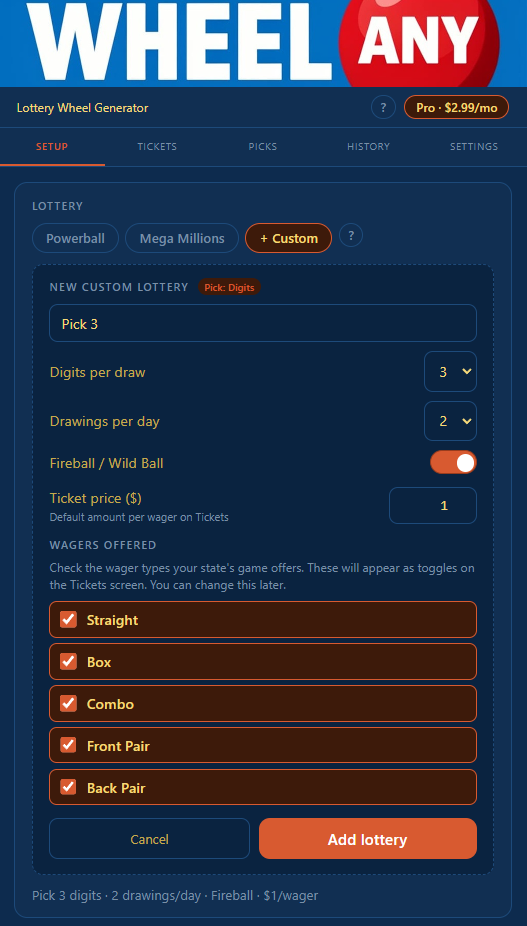
Custom digit lottery form with Pick:Digits tag, digits-per-draw selector, drawings-per-day, Fire/Wild Ball toggle, ticket price, and wager checkboxes
Custom lottery form — digit games

There are no built-in digit games — every state’s rules are different enough that defining your own is the right starting point.

Creating a Custom Digit Lottery

In the Setup tab, tap + Custom in the lottery selector. At the top of the form, pick Digits. Fill in:

Name — e.g. “Maryland Pick 3” or “PA Pick 4”
Digits per draw — 3, 4, or 5
Drawings per day — 1, 2, or 3 (midday/evening/etc.)
Fire/Wild Ball — toggle on if your state offers it
Ticket price — the default amount per wager on the Tickets screen. If you typically split Straight/Box 50/50, set this to $0.50 and each wager pre-fills with that amount. Set it to $1 if you mostly play a dollar per wager. You can change individual amounts anytime — this is just the default.
Wagers offered — check the wager types your state’s game actually has, then check off the ones you actually play. Skipping Combo because you never use it keeps the Tickets screen tidy; you can re-enable it later.

Tap Add lottery. The custom lottery appears as a pill in the selector. Tap it once to use it; tap it again to reopen the form and edit settings. To delete, tap the × on the pill.

What You Don’t Enter Here

Prize amounts. Different states pay different prizes per wager type, sometimes per dollar bet, sometimes flat. Instead of asking you to look them all up at setup time, the app waits — the first time you actually win on a given wager type, you enter the prize on the win checker. The app remembers it and pre-fills on future checks. One-time entry per wager type per lottery, then it’s on autopilot.

Slots are shared. Your custom lottery slots can hold any mix of lotto-style and digit games. Free gets 1, Pro gets 2, Elite gets 3. Upgrade for more.

5.4

Wheeling & Permutations

Two mechanics on the Setup tab decide how many tickets one row produces. They work independently and they stack. Worked examples follow — each shows the digit tiles exactly as you’ll see them in the Setup preview card.

Mechanic 1 — Wheeling

Put more digits in a row than the game draws, and the app wheels the extras into every K-digit subset of those digits. Pick 3 plus a 4-digit row gives you C(4,3) = 4 subsets. Pick 4 plus a 5-digit row gives you C(5,4) = 5 subsets. Pick 5 plus a 6-digit row gives you C(6,5) = 6 subsets.

Wheeling is automatic — just type more digits. The live count above the rows updates as you go.

Example 1 — Pick 3, row of 4 digits, permute off
Row:
1
2
3
4
4 combinations
1
2
3
·
1
2
4
·
1
3
4
·
2
3
4

Mechanic 2 — Permutations

Permutations expand each combination into all its orderings. Tap the button on the row to turn permute on. With ↻ off, each combination produces one ticket in sorted order. With ↻ on, each combination produces every ordering of those digits.

For K distinct digits there are K! orderings — 6 for Pick 3, 24 for Pick 4, 120 for Pick 5. Repeats reduce that count (see Example 4 below).

Example 2 — Pick 3, row of exactly 3 digits, permute on
Row:
1
2
3
↻ on 6 combinations
1
2
3
·
1
3
2
·
2
1
3
·
2
3
1
·
3
1
2
·
3
2
1

The Two Stack

Both at once: wheeling produces the K-digit subsets of the row, then permutations expand each subset into every ordering. One long row of favorite digits with ↻ on can produce a lot of tickets — useful for Straight coverage, expensive in tickets. Watch the live count.

Example 3 — Pick 3, row of 4 digits, permute on
Row:
1
2
3
4
↻ on 4 subsets × 6 orderings each = 24 combinations
1
2
3
·
1
3
2
·
2
1
3
·
2
3
1
·
3
1
2
·
3
2
1

(Showing only the 6 orderings of the first subset {1,2,3}. The other three subsets — {1,2,4}, {1,3,4}, {2,3,4} — each contribute their own 6 orderings, for 24 total.)

Repeated Digits

Digits can repeat in a row, and that’s by design — many people’s favorite digit combos include repeats. The math has one quirk: when permute is on, repeated digits produce fewer distinct orderings than all-distinct digits would. A row of 1-1-2 in Pick 3 has 3 unique orderings, not 6, because swapping the two 1’s gives the same ticket. The app accounts for this automatically.

Example 4 — Pick 3, row of 1-1-2, permute on
Row:
1
1
2
↻ on 3 combinations (not 6)
1
1
2
·
1
2
1
·
2
1
1

Multiple Rows

Each row contributes independently. Three rows on the screen, each producing some combinations, sum up to the total preview count. You can mix — one row exact-length for a specific combo, another row wheeling four digits, another row permuting three digits — and they all flow into the same preview together.

5.5

The Tickets Tab

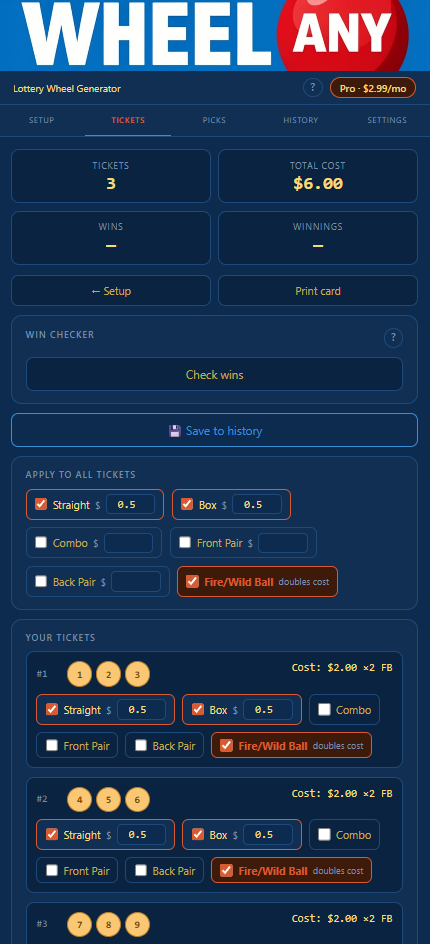
Digit Tickets screen showing master wager controls, per-ticket rows with wager checkboxes and dollar amounts, Fire/Wild Ball column, and save to history button
Digit Tickets — per-combo wagers

After tapping Play N tickets → on Setup, you land here. One row per unique combination, each with checkboxes for the wager types you turned on and a dollar field for each.

Stats Grid

Four stats at the top: Tickets (count of combinations), Cost (sum of all wager amounts you’ve entered), Wins (after a win check), and Winnings (total confirmed prize amount).

Master Wager Controls

Above the ticket list sits a master row — one checkbox per wager type you enabled for this lottery, plus a master Fire/Wild Ball checkbox if the lottery has F/W on. Each master checkbox has an amount field next to it.

Toggle a master checkbox on, and the same wager flips on for every ticket below, with the amount you set. Toggle off, the wager flips off for every ticket. Type a new amount into the master field and every ticket’s amount for that wager updates. Per-ticket toggles and amounts still work normally on top of that — the master is a fast way to bulk-apply, not a constraint.

Per-Ticket Rows

Each row shows the digits as tiles, then the wager checkboxes for that ticket. Tap any checkbox to enable that wager type; an amount field appears next to it, pre-filled with the lottery’s default ticket price (or the current master amount if you set one). Type to change. Toggle the Fire/Wild Ball box on the right to add the F/W bonus to that ticket — see 5.7 Fire/Wild Ball.

One exception you may notice: on an all-same ticket (111, 8888), Box appears dimmed and labeled (n/a). A boxed bet pays for covering every ordering of your digits, but a triple or quad has only one ordering — there’s nothing to box, and no state pays a one-way box. If you flip the master Box checkbox on, it still applies Box to every eligible ticket and simply skips the all-same ones.

Action Buttons

← New game — return to Setup, leaving everything you set up there intact
Print card — printable reference with each ticket and its enabled wagers. Disabled for sets over 500 tickets.
▶ Play again — appears when viewing a history entry. Reuses the same tickets as a template for a new drawing.

Saving to History Pro

Tap 💾 Save to history to log this ticket set. A dialog opens with a drawing date picker. If your lottery has more than one drawing per day, a Drawing event selector also appears — choose Drawing 1, 2, or 3 (midday, evening, etc.), or leave it as “— none —” if you’re not tracking which.

If you’re viewing an entry you already saved, the status line above the button reads Saved to history — {date}, and the dialog’s confirm button adapts: changing the date or the drawing event flips it from Update history entry (overwrite in place) to Add history entry (create a new entry, keep the old one). That’s how you reuse a saved ticket set as a template for the next drawing.

A separate Clear win results button appears on the Win Checker whenever there’s content to clear — for reusing a saved entry as a template. See 5.6 The Win checker.

5.6

The Win Checker

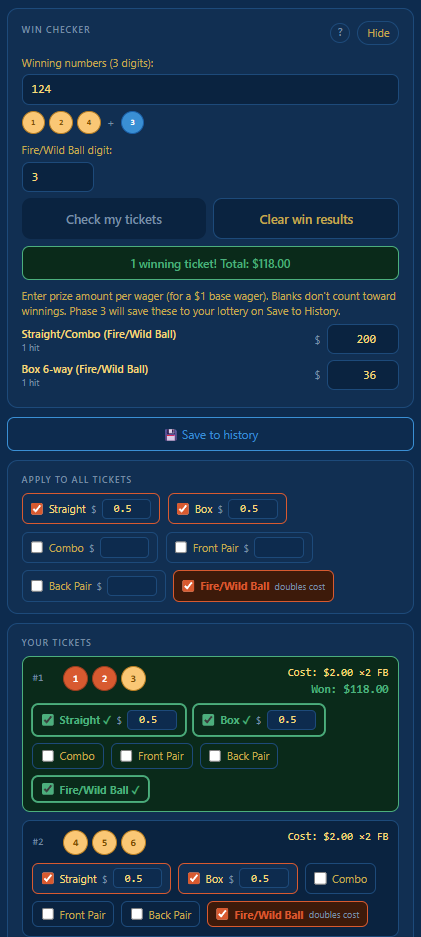
Digit Win Checker showing winning digits input, optional Fire/Wild Ball digit, prize amount fields per wager type, and result banner
Digit Win Checker — drawn digits & prizes

After the drawing, type the winning digits and watch the app sweep your tickets for matches. The first time you win on a given wager type, the app asks you for the prize amount — once. Future checks of that wager type pre-fill it for you.

How to Run a Win Check

1
In the History tab, tap the entry — the ticket set loads in the Tickets tab
2
Tap Check my tickets on the Win Checker card to expand it
3
Type the winning digits. Each digit goes in its own slot, left to right, exactly as drawn.
4
If the lottery has Fire/Wild Ball and one was drawn, type the F/W digit
5
Tap Check my tickets at the bottom to run the check

Reading Your Results

The result banner shows your total winning tickets and prize amount. Each ticket row carries a small badge for its win type — Straight, Box, Combo, F3 (Front 3), F/W if the win came from a Fire/Wild Ball substitution, and so on. Tickets that didn’t win stay neutral.

Below the ticket list, the app shows one prize-amount field per wager type that produced a win. Type the prize per dollar bet — check your state’s prize chart once, type it once, and the app calculates your total. If you played a $0.50 Straight bet and the Straight prize is $500 per dollar, the app pays you $250.

Prize Memory

The first time you enter a prize for a given wager type, the app stores it back to your lottery template. Next time you check a winner of that same wager type, the field pre-fills automatically — you just confirm or adjust. Over a few drawings, every wager type you actually win on becomes pre-filled, and win checks become one-tap.

If the state changes prize amounts, just type the new amount when it differs from the pre-filled value. The new amount overwrites the stored one going forward.

Saving Win Results

Tap 💾 Save to history below the Win Checker. The dialog opens with the drawing date already filled in. If you set a drawing event when saving the ticket set, it’s pre-filled too. Confirm or change them, then save — the confirm button reads Update history entry if you’re keeping the same date and event, or Add history entry if you changed either. The History tab updates with the drawn digits and result summary; your confirmed winnings roll into the Won total.

Clear Win Results

Once you’ve typed anything into the winning digits or run a check, a Clear win results button appears next to Check my tickets. Tapping it wipes the digit inputs, the Fire/Wild Ball digit, the prize-amount fields, and the computed results — but leaves your tickets, wagers, amounts, and the entry’s history binding untouched.

This is the move when reusing a saved entry as a template for the next drawing. Recall the entry, clear the previous drawing’s results, change the date (and drawing event if multi-drawing) in the Save dialog, tap Add history entry. Fresh entry for the new drawing, original untouched.

5.7

Fire/Wild Ball

An optional add-on offered alongside many states’ digit games. The state announces an extra digit at drawing time; substituting it into your ticket can turn a near-miss into a winner. Different states call it different things — Fireball in most, Wild Ball in Pennsylvania, others by other names — but the mechanic is the same: an extra digit that acts as a wild card.

How It Works in the App

On Setup & Custom Lotteries: turn on the Fire/Wild Ball toggle when you define your lottery. The option appears wherever F/W is relevant after that.

On the Tickets tab: each ticket row has a Fire/Wild Ball checkbox. Toggle it on for the tickets where you paid for F/W. The master row at the top also has a Fire/Wild Ball checkbox — toggle it to flip F/W on or off for every ticket at once. The added cost is bundled into each ticket’s line item; F/W typically doubles the cost of the underlying wager, matching how states price it.

On the Win Checker: if the lottery has F/W on, an extra slot appears for the F/W digit. Type it in along with the regular drawn digits.

How Wins Are Calculated

The app checks each F/W-enabled ticket two ways: with the regular drawn digits, and with the F/W digit substituted in for each of your ticket digits one at a time. Whichever produces the better result counts.

If your ticket already won on the regular draw, F/W just stacks on top — states pay the regular win plus any additional win from the F/W substitution. So F/W never costs you a win; it can only add one. The app handles the addition automatically. Win badges show F/W on tickets whose win came solely from a F/W substitution, so you can see at a glance which tickets the bonus actually paid for.

When to Turn It On

F/W is a state-by-state value judgment — some states price it well, others don’t. The app doesn’t take a position. If your state offers it and you like the math, toggle the master Fire/Wild Ball checkbox on the Tickets tab and you’re set.

5.8

Typical Play Sequence

A walkthrough of one digit game’s lifecycle — from setup, through a midday drawing, an evening drawing, and reusing the same tickets for tomorrow. This is how the digit-game side of the app fits together day to day.

Monday Morning — Setting Up

You play Maryland Pick 3 twice a day — midday and evening. You’ve already set up the custom lottery with Straight, Box, and Front Pair as your wager types, ticket price $0.50, Fire/Wild Ball off. Two drawings per day.

On the Setup tab you tap your favorite digits into a single row: 1·4·7. Exactly three digits, permute off — that’s one ticket. The live count reads Your picks (1 unique combination). You tap Preview 1 combo →, check the box, then Play 1 ticket →.

Monday Morning — Setting Wagers

The Tickets tab shows one row with the tiles 1·4·7. You tap the master Straight checkbox — Straight flips on for the row, $0.50 in the amount field. You tap the master Box checkbox too — Box flips on at $0.50. Total cost: $1.00 for this ticket.

You head to the store and buy your ticket at the counter. Back home, you tap 💾 Save to history. The dialog opens with today’s date prefilled. You set the Drawing event to Drawing 1 (midday) and tap Add history entry. The status line reads Saved to history — Mar 11.

Monday Midday — First Drawing

The state draws 4·7·1. You open the app, tap the History entry, tap Check my tickets, type 4-7-1 into the slots, tap Check my tickets at the bottom.

Banner: 1 winning ticket. Your Box bet hit — 1-4-7 in any order matches a 4-7-1 draw. A prize-amount field appears: Box prize ($ per $1 bet). This is your first Maryland Pick 3 Box win, so the field is empty. You check the prize chart on the lottery’s website: Box pays $80 per $1 bet on a 3-distinct-digit combo. You type 80. Your $0.50 Box bet pays $40. The result banner updates.

You tap 💾 Save to history. The dialog opens, today’s date prefilled, Drawing 1 still set. The confirm button reads Update history entry. You tap it. The History tab shows your entry confirmed with $40 won. The Box prize amount you typed is now remembered — next Box win you check, the field will pre-fill with 80.

Monday Evening — Reusing the Same Numbers for Drawing 2

You want to play 1-4-7 again for the evening drawing. From the Tickets tab you’re already viewing the Monday-midday entry. You tap Clear win results to wipe the midday drawn digits and the win badges. The ticket itself stays, wagers stay, amounts stay.

You tap 💾 Save to history. The dialog opens with today’s date prefilled (Monday) and Drawing 1 prefilled. You change the Drawing event to Drawing 2. The confirm button flips to Add history entry. Tap. Brand-new entry — same ticket, same wagers, Monday evening, separate from the midday entry.

Same ticket reused, both midday and evening drawings tracked individually, original entry untouched.

Tuesday — Reusing the Same Numbers for Tomorrow

Same play, new day. Open your Monday-evening entry, tap Clear win results if there were any, tap 💾 Save to history, change the date to Tuesday, leave Drawing 1 set (or change to whichever event you’re playing first), tap Add history entry. New entry. Carry on.

If you only play one drawing a day, the workflow is the same minus the Drawing event step.

What Keeps the Entry Linked, and What Breaks the Link

Same idea as the lotto-style side — some actions preserve the binding to the current history entry, others create a new one.

Link survives: typing winning digits, running a win check, clearing win results, entering prize amounts, toggling wager checkboxes, changing wager amounts, flipping Fire/Wild Ball on or off. The entry on the Tickets tab still represents the same saved game.

Link breaks: going back to Setup and changing your digit rows, the permute toggles, or generating a new preview. The app treats those as a new configuration, and the Tickets tab clears.

The Save dialog’s CTA — Update history entry vs Add history entry — is the live signal. If you see “Update,” saving overwrites the linked entry. If you see “Add,” you’re about to create a new one.
The Picks Tab

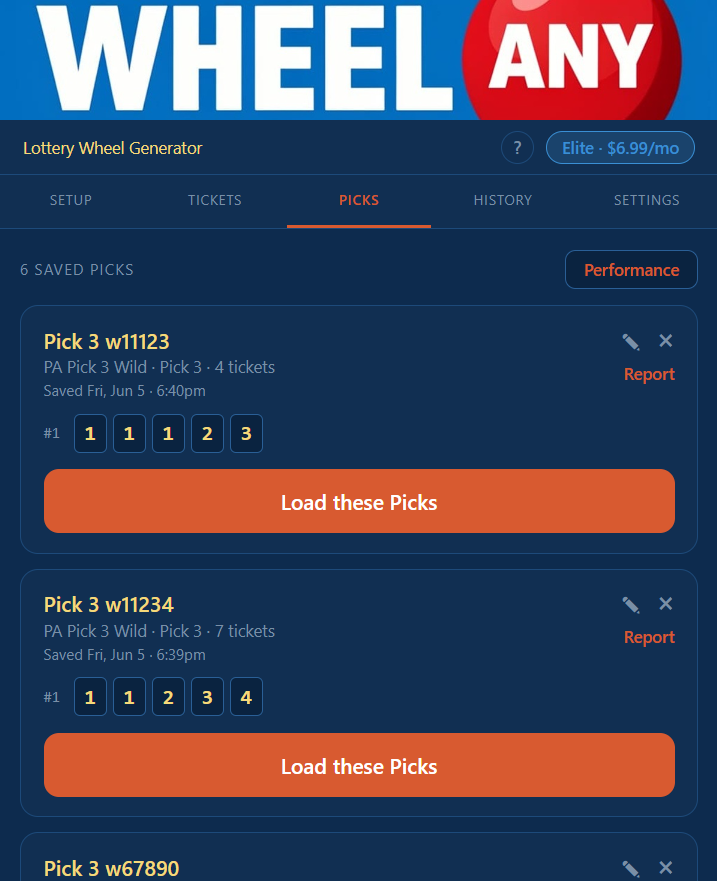
Picks tab with a Performance button in the saved-Picks header and saved configurations as cards, each showing name, edit and delete buttons with a Report link, summary line, ball/digit visualization, and Load these Picks button
Picks tab — saved configurations

The Picks tab holds the setups you save from the Setup tab. Each card is a recipe — a lottery, your selected numbers (or digit rows), and the settings to recreate them in one tap. Use it when you have favorite numbers you play repeatedly.

What a Picks Card Shows

Name — whatever you typed when saving (or a default). Tap the button to rename anytime.

Summary line — the lottery and a quick recap. For lotto-style: number of main picks, bonus picks, and ticket count. For digit games: digits-per-draw and number of rows.

Saved timestamp — when you saved it (“Saved Wed, May 14 · 3:42pm”).

Visualization — the picks themselves. Balls for lotto-style; digit tiles per row for digit games, with a small ↻ marker on rows that have permute on.

Load these Picks — the main action. Restores the full Setup configuration and jumps you back to the Setup tab. From there, generate as usual.

Report — a small link in the card’s upper-right, under the ✎ and ✕ buttons. Opens a cost-vs-winnings report for just this Pick. See Performance & Reports below.

Rename & Delete

The button next to the name opens an inline rename field — type a new name and press Enter, or Escape to cancel. The × button removes the card after a confirmation. Deleting a saved Picks card does not affect any history entries that were created from it.

When Picks Help

If you play the same numbers week after week — a wheel of birthdays, a favorite digit combo for the daily Pick 3 — saving them once means every future play is two taps: Load these Picks, then Generate. No more re-typing.

If you experiment with different setups, Picks let you keep several around without having to remember what you tried last week. Name them descriptively (“9-number Powerball wheel” — “Maryland Pick 3 favorites”) and they stay organized.

Performance & Reports

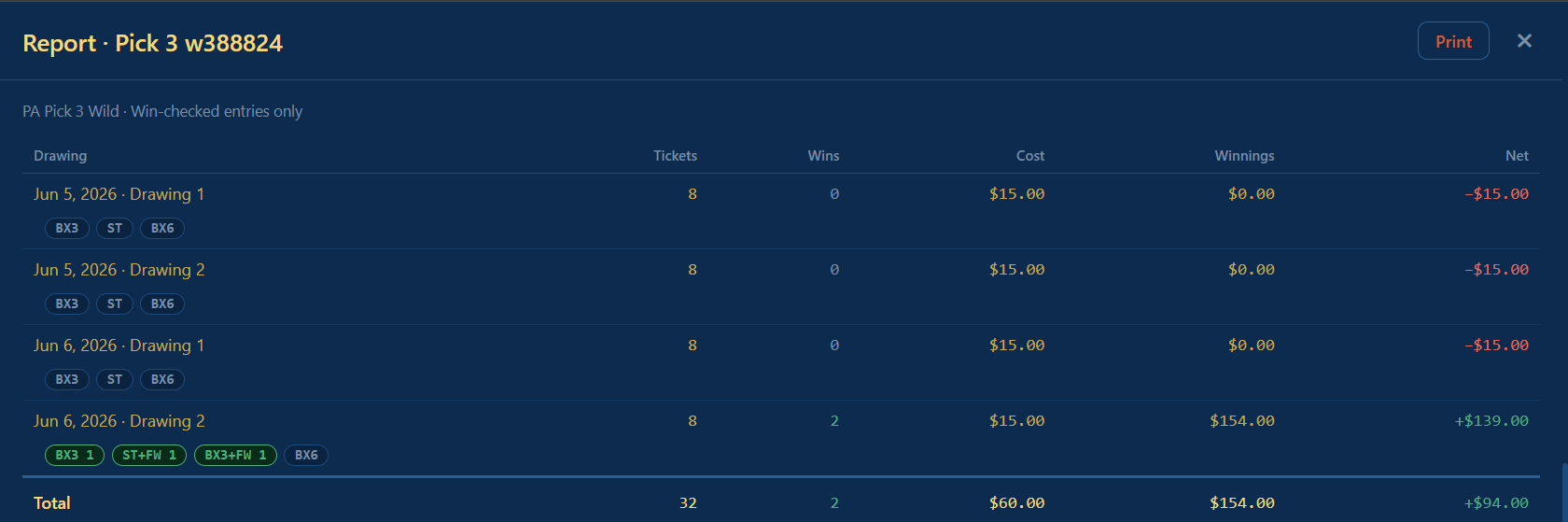
Picks performance report showing drawings grouped by lottery and Pick, with Tickets, Wins, Cost, Winnings, and Net columns, per-Pick subtotals, a grand total, and detail chips under each row
Performance report — cost vs. winnings by Pick

Once you’ve been checking wins for a while, the Picks tab can show you how each Pick is actually doing — what it’s cost you against what it’s paid back. Two entry points:

Performance — a button in the N saved Picks header row, off to the right. Opens a combined report across all your Picks, grouped by lottery and then by Pick.

Report — the per-card link described above. Opens the same kind of report for a single Pick.

Each report lists one row per saved drawing, with columns for Tickets, Wins (how many tickets won), Cost, Winnings, and Net. Per-Pick subtotals and a grand total sum it all up. Net turns green when you’re ahead. If a drawing has no recorded ticket price, its cost shows as and is left out of the Net math — a small note explains it — but its winnings still count.

In the single-Pick report, each row also carries small detail chips showing which wager types or prize tiers hit — for digit games, things like ST, BX6, or B2, with a +FW tag when a Fire/Wild Ball substitution paid; for lotto-style games, the paying tiers like M3, M4+B, or JACKPOT!. A green chip with a count means at least one ticket hit it; a dim chip means it didn’t.

Only win-checked drawings tied to an existing Pick appear — including checked drawings that won nothing, which is the honest picture. A Print button gives you a clean, color-on-white version for your records.

Available on every tier, including Free. The report reads whatever’s in your current session, so even as a guest you can try it out — just remember Free history clears when you close the app, so the long-term view is really a Pro/Elite payoff.

Free vs Pro

On the Free tier — guest or signed in — you can save Picks within a session and try the whole workflow. They’ll disappear when you close the app. Upgrade to Pro to keep them across sessions, with no limit on how many you save.

The History Tab

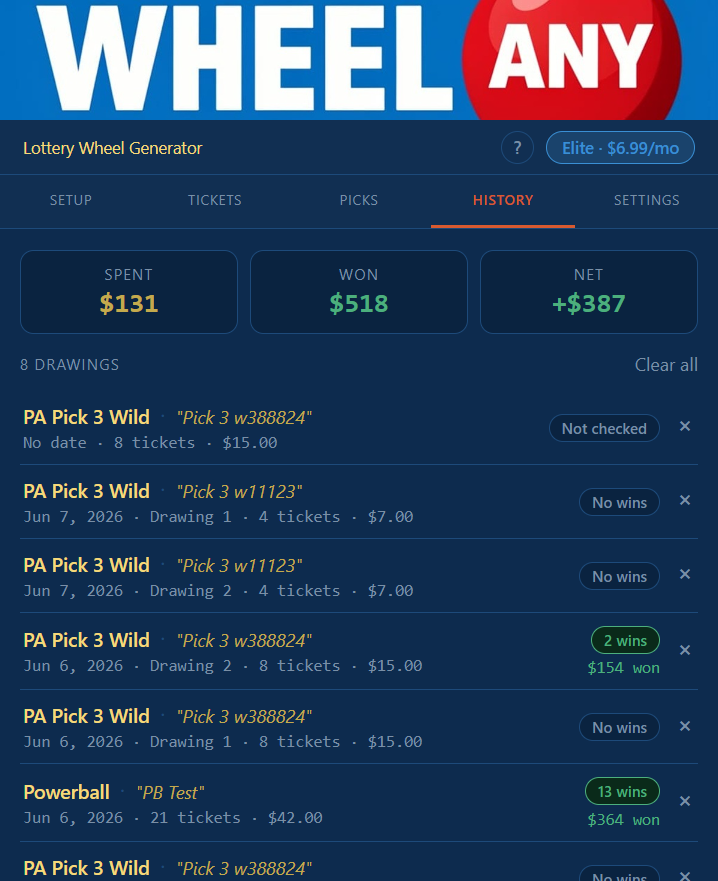
History tab showing Spent/Won/Net stats grid and a compact list of past drawings, each a two-line row with lottery name, date, ticket count, cost, and a win chip on the right
History tab — saved drawings & running totals

Every saved game lands here as a row in a compact, scannable list. A running totals row at the top sums your spending, winnings, and net — the long view of how you’re doing. Tap any row to load that drawing back into the Tickets tab for review, win checking, or reuse as a template.

The Stats Row

Three numbers, calculated across every entry in your history:

Spent — sum of all ticket costs you’ve recorded.

Won — sum of all confirmed prize amounts from win checks.

Net — Won minus Spent. Green if you’re ahead, red if you’re behind, no judgment from us either way.

What Each Row Shows

Each saved drawing is two tight lines plus a status chip:

Top line — the lottery name, and — if the drawing came from a saved Pick — the Pick’s name in italic quotes. Long names trim with an ellipsis.

Bottom line — the drawing date (or “No date”), the drawing event for multi-draw digit games (“· Drawing 2”), the ticket count, and the cost.

Win chip (right side) — the scan anchor. It reads N wins in green when tickets won, or muted No wins, Checked, or Not checked otherwise. When there was a prize, $X won shows just beneath it.

× — deletes that drawing (with a confirm).

The full detail — ball or tile previews, the drawn numbers, the saved timestamp — lives one tap away in the Tickets view, which keeps the list itself fast to skim even when it’s hundreds of drawings long.

Loading an Entry

Tap any row and the full set of tickets loads in the Tickets tab. From there you can check wins, save win results, change the date and create a new entry (“recall as template”), or tap ▶ Play again to clear the binding and use the tickets as a fresh starting point. The two Typical Play Sequence sections cover both flows in detail — 4.6 for lotto-style, 5.8 for digit games.

Delete & Clear

The × button on each row deletes that drawing after confirmation. The Clear all link in the top-right wipes the entire history and resets your spent/won totals — gone for good. Both actions confirm before doing anything.

Free vs Pro

On Free — guest or signed in — your history works within a session: you can save drawings, run win checks, and recall as template, all in real time, and the header reminds you it’s session only. Everything clears when you close the app. Upgrade to Pro to keep your history across sessions and track wins over months and years.

Settings & Account

The Settings tab is where you manage your account, plan, preferences, and the data you’ve created in the app.

Account

If you’re signed in, this shows your current username and email. Tap next to the username to change it; same rules as account creation (3–20 characters, lowercase letters, numbers, and underscores). A green checkmark confirms the new name is available.

If you’re browsing as a guest, this card shows a short note and a Sign In button instead — signing in is how you keep a custom lottery from session to session.

Sign Out signs you out on this device. On Pro and Elite, your Picks and history stay safe on the server and reappear when you sign back in; on Free, your one custom lottery is what’s waiting for you next time.

Plan

Shows your current plan (Free, Pro, or Elite) and your renewal date if applicable. Free users see Upgrade to Pro and Upgrade to Elite buttons with current pricing. Pro users see an Upgrade to Elite button.

Pro and Elite users see a Cancel Subscription button. Cancellation takes effect at the end of your current billing period — you keep full access until then, and your saved Picks and history are preserved during that grace period. After the period ends, your subscriber data is deleted and your account reverts to Free.

If you change your mind during the grace period, a Reactivate Subscription button restores you to your current plan without losing any data.

Preferences

Background audio toggle — controls whether the app plays original music during interstitial moments. Off by default; toggle on if you want it.

This card appears once you’re signed in. Guests don’t see it — there’s no saved profile to store the preference against, so guest audio simply plays.

Danger Zone — Delete Account

The Delete Account button removes your account and all associated data permanently. There’s no undo. The app confirms before going through with it. (Guests don’t see this card — there’s no account to delete.)

About

Shows the app name, current version (so you know which features you have), and the website. The version number is also what to mention if you ever email us about a bug.